ADA Tray® A Revolutionary Accessibility Solution
- WCAG 2.1 Level AA Guidelines
- ADA Title III
- Dedicated Accessibility Statement


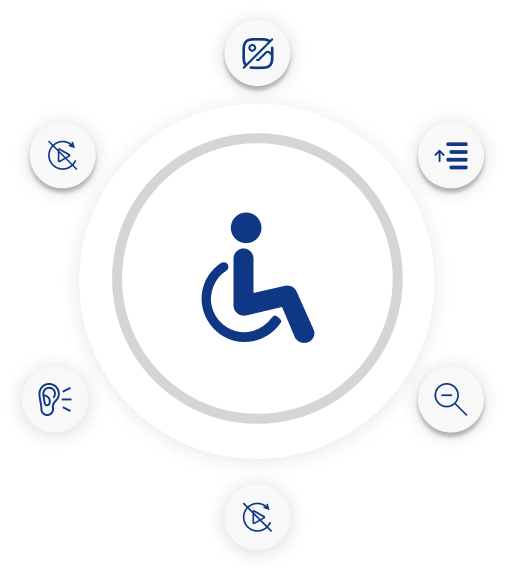
An effective web accessibility widget, the ADA Tray® interface allows each visitor to personalize your website’s design and UI to their specific need or disability without affecting all other site visitors.
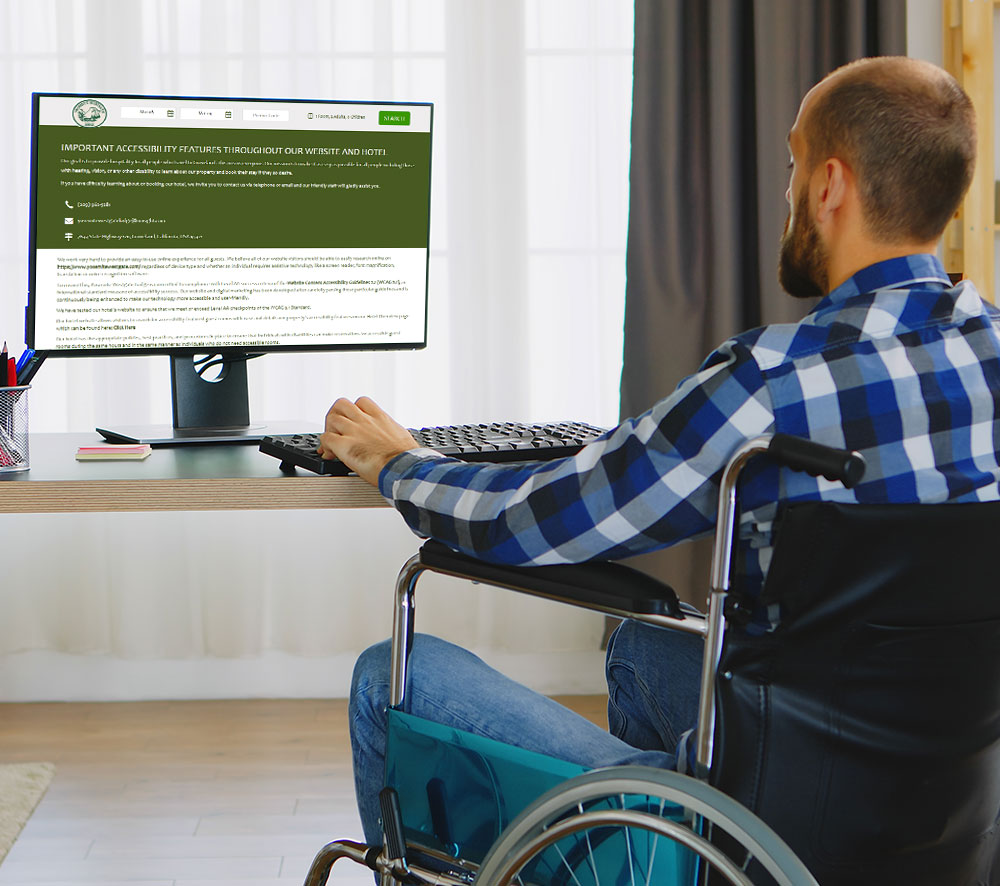
This accessibility tray interface is designed to help your website meet WCAG and ADA Title III requirements, allowing it to be consumed by individuals with varying degrees of audio, visual, and/or mobility impairments.
ADA Tray® allows for color adjustment and an infinite number of font sizes, spacing, and content surfacing configurations, as well as a novel audio translator.
Individuals who suffer from glaucoma, cataracts, color vision deficiency, or blindness may have difficulty experiencing your website. ADA Tray® provides customizable, context-sensitive text-to-speech and screen-reading capabilities that let people browse your website with ease. With flexible usability and accessibility features, our ADA compliance website tool revolutionizes web accessibility simply and effectively.

Click the Listen Button to activate click-to-audio translation of any text on the web page. Simply point your cursor or tab through any text section on the web page to read the content out aloud.
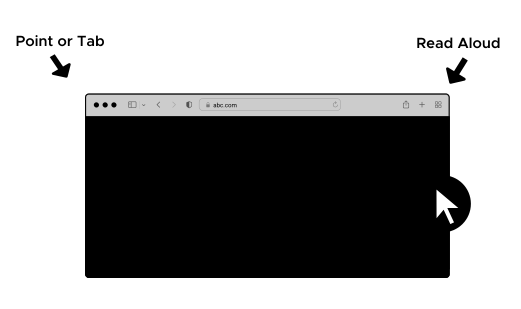
Click the Listen Button to activate click-to-audio translation of any text on the web page. Simply point your cursor or tab through any text section on the web page to read the content out aloud.
The Black and Yellow Contrast Toggle helps provide sufficient techniques to satisfy various components of Principle 1 - Perceivable, and specifically Guideline 1.4.1: Use of Color and 1.4.3 Contrast (Minimum) and 1.4.6 Contrast (Enhanced). This filter is useful for individuals that may face visual impairment and/or color-blindness.


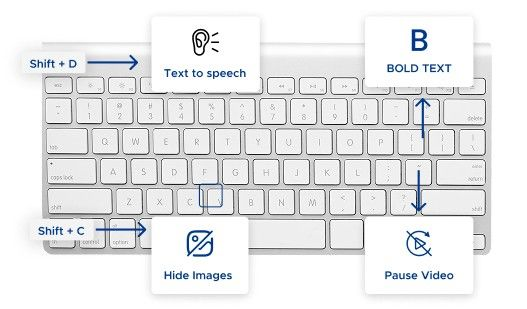
The Hide Images toggle removes all images from the webpage, helping users focus on text content and reducing visual distractions.

The Increase Font feature enlarges webpage text, improving readability for users with visual impairments or difficulty reading smaller text.

The Screen Reader option enables screen reader support, allowing visually impaired users to have webpage content read aloud.

The Pause Animation toggle stops all moving or flashing content, reducing distractions and helping users who may experience motion sensitivity or cognitive overload.

The Monochrome toolkit in AdaTray converts all webpage content to grayscale, helping users with color vision deficiencies focus on structure and content without color distractions.

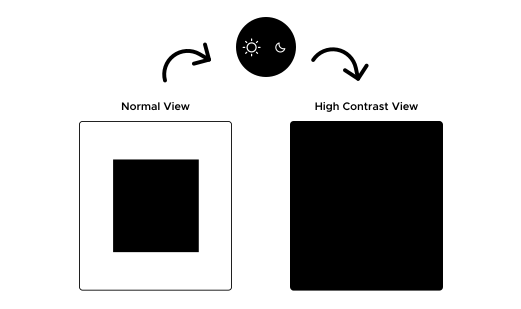
The High Contrast toggle allows visitors to switch the webpage to a high-contrast color scheme, making content easier to distinguish and read.

The Black and Yellow Contrast toggle enhances readability by providing sufficient contrast to meet WCAG Principle 1 – Perceivable, specifically Guidelines 1.4.1 (Use of Color), 1.4.3 (Contrast Minimum), and 1.4.6 (Contrast Enhanced). This is particularly useful for users with visual impairments or color blindness.

The Sepia Filter button toggles the webpage from its original color scheme to a reddish-brown overlay, enhancing readability for individuals with color vision deficiencies.
Enhance your website's browsing experience to best meet users' needs based on their disadvantages and preferences.


Motor Assistance Mode


Seizure Protection Mode


Screen Reader Mode(Blind)


Cognitive Assistance Mode


Dyslexia-Friendly Mode


Enhanced Contrast Mode
Color Blind Mode


Distraction-Free Mode(ADHD)


Hide Images


Text-To-Speech


Pause Animation


Increase Text Size


Decrease Text Size


Zoom In


Zoom Out


Increase Line Space


Decrease Line Space


Increase Word Space


Decrease Word Space


Increase Letter Space


Decrease Letter Space


Text Alignment


Bold Text


Emphasize Headings


Emphasize Links


Screen Reader
Mono Chrome

Gray Scale
Sepia
High Contrast

Invert
WCAG Color
Color Blind Mode
Distraction-Free Mode(ADHD)
Now you can customize and control all of the web accessibility widget features with a single click with The ADA Tray® Content Management System.
ADA Tray® has been shown to improve the accessibility of many websites built on different integrated platforms and protect businesses from 'Click-By' ADA lawsuits alleging that their website is inaccessible.
Our accessibility tray interface addresses your brand's needs and requirements by offering a customizable solution that can be seamlessly integrated into your website. This enhances accessibility and usability for customers who require assistance on desktops, mobile, and tablets. Contact us to learn how we can customize the ADA Tray® with your branding.

Choose Widget Icons from a variety of options.

Change the position of the widget icon on your website.

Enable or disable WCAG features based on your needs.

Incorporate your brand




Instead of traditional "drive-by" ADA lawsuits, where a plaintiff alleges that the physical property does not meet ADA accessibility laws, "click-by" suits start with a serial plaintiff suing almost exclusively over claims of your website being inaccessible.
"Click-by" lawsuits originate when serial plaintiffs and their attorneys spot a violation on your website where it either does not adhere to ADA Title III (for places of accommodation) and/or not conforming to Website Content Accessibility Guidelines and simply with a click of a button, send off a demand letter or lawsuit without ever stepping foot on your property.
 Contact Us
 Get Your Tray
Start Your 30-Days Free Trail Today


This website uses cookies to deliver our services and to show you relevant inventory, property details, and rates for . By using our website, you acknowledge that you have read and understand our Cookie Policy, Privacy Policy, and our Terms of Service. Your use of 's services, including the booking of online reservations, is subject to these policies and terms.

 4
4
These Cookies are strictly necessary to provide you with services available through our websites and to use some of its features, such as access to secure areas and to book accommodations.
These Cookies are used to enhance the performance and functionality of our websites but are non-essential to their use. However, without these Cookies, certain functionality (like videos) may become unavailable.
6
These Cookies collect information that is used either in aggregate form to help us understand how our websites are being used or how effective our marketing campaigns are, or to help us customize our websites for you.
2
These Cookies are used to make advertising messages more relevant to you. They perform functions like preventing the same ad from continuously reappearing, ensuring that ads are properly displayed for advertisers, and in some cases selecting advertisements that are based on your interests.
2
These Cookies are used to enable you to share pages and content that you find interesting on our websites through third-party social networking and other websites. These Cookies may also be used for advertising purposes, too.
What Are Cookies?
Cookies are small data files that are placed on your computer or mobile device when you visit a website. Cookies are widely used by website owners in order to make their websites work, or to work more efficiently, as well as to provide reporting information.
Cookies set by the website owner are called “first party cookies.” cookies set by parties other than the website owner are called “third party cookies.” Third party Cookies enable third party features or functionality to be provided on or through the website (e.g. like advertising, interactive content, analytics, etc….). The parties that set these third party Cookies can recognize your computer both when it visits the website in question and also when it visits certain other websites.
Why Do We Use Cookies?
We use first and third party Cookies for several reasons. Some Cookies are required for technical reasons in order for our websites to operate, and we refer to these as “strictly essential” or "strictly necessary” Cookies. Other Cookies also enable us to track and target the interests of our users to enhance the experience on our website. Third parties serve Cookies through our website for advertising, analytics, and other purposes.
The law states that we can store cookies on your device without prior consent for strictly essential or strictly necessary cookies. For all other types of cookies we need your permission. You can at any time accept, reject, or change the cookie settings on this website at any time by clicking on the cookie settings link.